GETTING STARTED
How to Add a Downloadable PDF in WordPress
A visitor should be able to find your brochure, checklist, or price list and understand what they are about to open. WordPress includes a File block for this job. You can add a PDF link and an optional download button without installing another plugin.
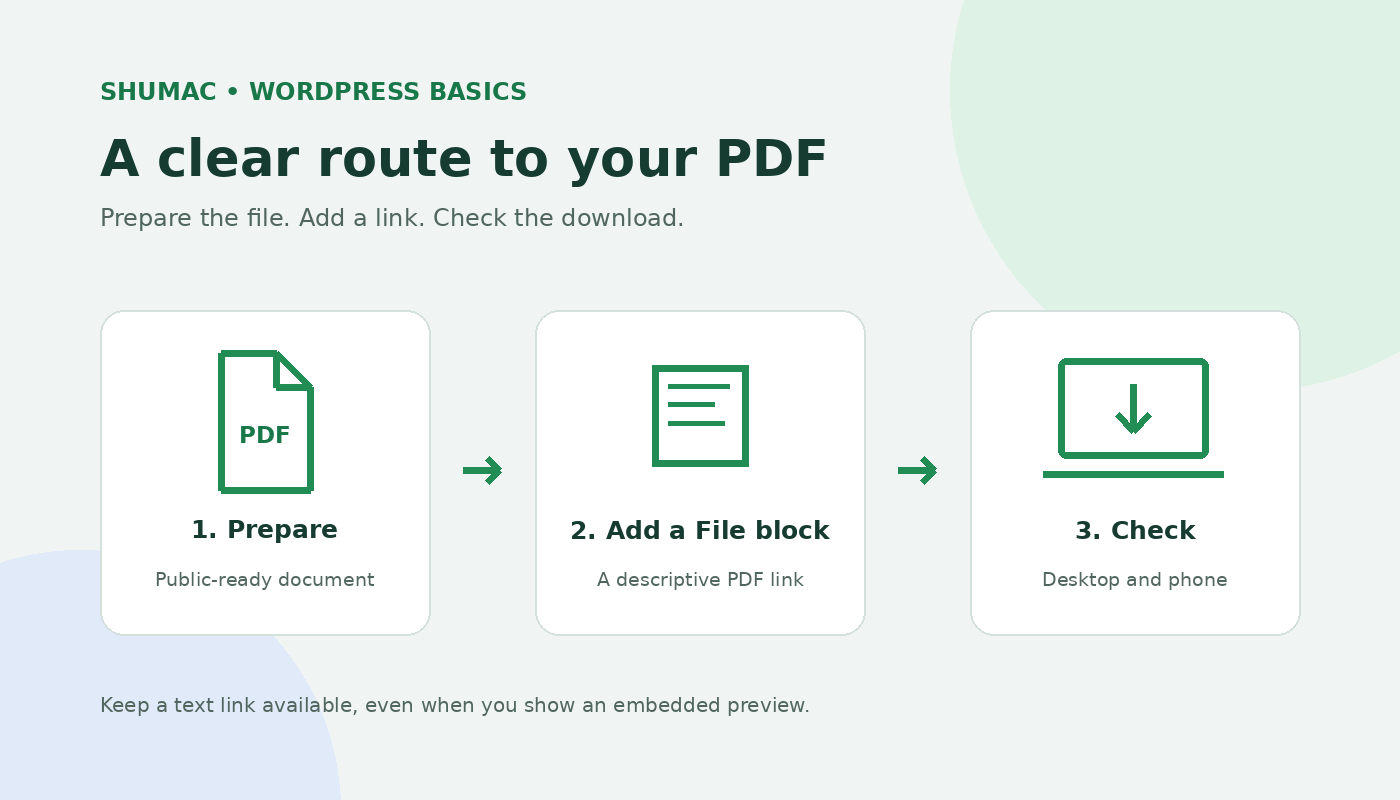
This guide uses the WordPress block editor, also called Gutenberg. If your existing page opens in Elementor or another builder, use that builder’s file-link workflow rather than switching editors mid-page.
1. Prepare a file that is ready to share
Open the PDF on your own device before uploading it. Check that its pages are complete, the text is readable, and the contact details or dates are current. Use a descriptive filename such as service-brochure-october-2026.pdf, rather than final-final-2.pdf.
Only upload material you own or have permission to distribute. Review the document for private information, comments, and details that were intended only for a client. Treat an ordinary Media Library upload as public: do not rely on a draft or password-protected page to keep the file itself confidential. Restricted documents need a properly access-controlled sharing method.
Decide whether readers really need a PDF. A printable worksheet is a useful download. Essential opening hours, prices, or instructions should also appear as readable page text so visitors can get the answer without opening a document.
2. Insert the File block
Open the post or page you want to edit. Add a new block, search for File, and select it. You can also type /file in an empty paragraph and choose the File block.
Choose Upload for a PDF on your device, or Media Library for a file already on the site. Wait for the upload to finish. The block shows a linked filename and a download button. These controls are documented in the official WordPress File block guide.
Select the block and open the Block settings sidebar. For a direct PDF link, choose Media file under Link to if that option is shown. Keep Show download button enabled if you want a separate button.
3. Give the link a useful label
Click the linked filename inside the block and replace the visible text with a description. You can edit the button text too. For example, a fictional two-page brochure might use:
- Link: “Service brochure, October 2026 (PDF)”
- Button: “Download brochure”
- Nearby sentence: “A two-page overview of our services and contact options.”
Use the real document’s details. If you mention a file size or page count, check it first. A label such as “Click here” gives little help when several downloads appear together. W3C’s guidance on descriptive link text explains why a link should make its purpose clear.
4. Choose whether to show the PDF on the page
For a compact download, turn off Show inline embed under the block’s PDF settings. To offer an on-page preview, turn it on and adjust the display height if needed.
Keep the file link available either way. Embedded PDFs do not display consistently across phone and tablet browsers; WordPress.com’s File block support guide specifically warns about this limitation. A tall preview should not be the only route to the document.
5. Check the visitor’s route
Save your draft and open its preview. Follow the PDF link and confirm that the correct document opens. Try the button separately. Depending on the browser and its settings, the file may open in a viewer instead of immediately saving to a Downloads folder.
- Check desktop and narrow mobile layouts. Long labels should wrap without hiding the button.
- Use the keyboard’s Tab key to reach the link and button, then activate them with Enter.
- Read the actual PDF, not just its filename. Confirm that it matches the promise on the page.
- After publishing, repeat the check from the public page while logged out.
When something goes wrong
The upload fails: read the exact error. Check the file size against the maximum shown on your site’s upload screen, as described in the WordPress media upload documentation. Re-export an unnecessarily large PDF before asking your host about its limits. Do not rename a different file type to .pdf.
The wrong version opens: select the File block, choose Replace, and select the correct PDF. Then save the page and test again. Replacing the block’s file does not update every other link you previously shared.
A preview is blank on a phone: use the text link to open the file. If the preview adds little value, remove the inline embed and keep a clear download link.
Make future updates easier
Share the address of a stable resources page when a document changes regularly. You can update its File block while keeping the page address the same. Uploading a new file can create a different media URL, even when its name resembles the old one.
For a resources page with several sections, our guide to adding jump links in WordPress can help readers reach the right download. If you are still planning the site, start with our first WordPress website guide.