How to Add Alt Text to Images in WordPress
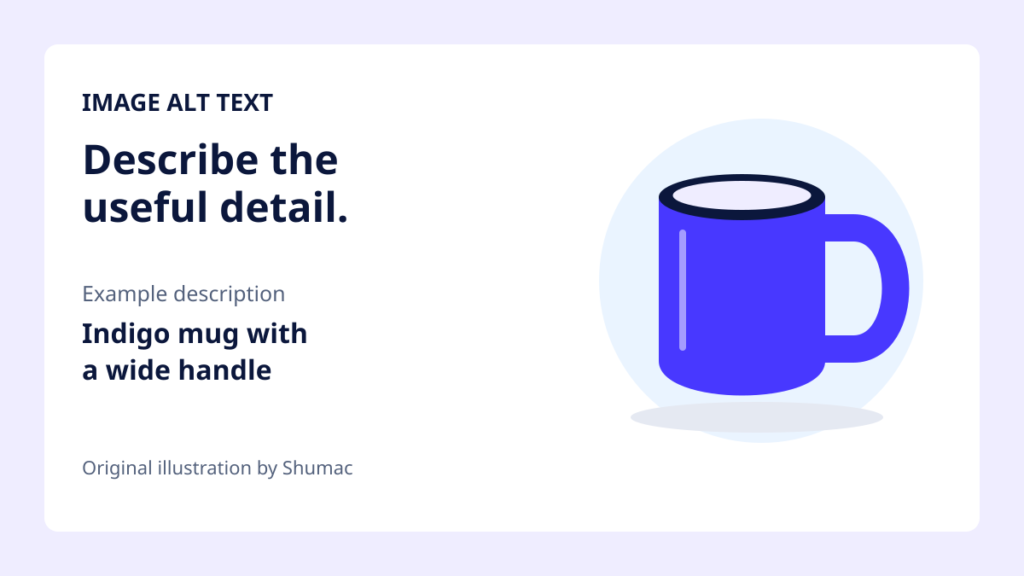
Alt text gives an image a useful text alternative for people who cannot see it. In WordPress, the important part is choosing words that fit the image’s job on the page, then saving them in the right place.
This guide covers the native WordPress Image block and Media Library. Elementor and other page builders have their own image controls. You do not need an extra plugin for the steps below.
Decide what the image contributes
Before opening a settings panel, ask what a reader would miss if this image disappeared. The answer helps you decide whether to describe information, name an action, or leave the image decorative.
- An informative image: describe the detail that matters. For a mug shown in a design comparison, “Indigo mug with a wide handle” is more useful than “IMG_0412” or “nice mug.”
- An image used as a link: if the image is the only content of the link, explain the destination or action. A cover linking to a PDF could say “Download the website launch checklist (PDF).” Check the destination before writing the description.
- A purely decorative image: use an empty alternative, or the editor’s decorative option. Do this only when the image adds no information or function that the reader needs.
Context can change the answer. A mug’s handle may matter in an article about shapes; a background mug in an unrelated office photo may add nothing. W3C’s images tutorial explains these distinctions, including functional images and decorative images.
Add alt text to an image in a post
- Open the post in the WordPress block editor. Select the image itself so its Image block is active.
- Open the editor’s Settings sidebar if it is hidden, then choose the Block tab.
- Find Alternative text. In current WordPress versions, it appears in the Image block’s Content tab. Older versions may show it directly in the block settings.
- Enter a concise description. If the image is purely decorative, use Mark as decorative where available, or leave its alternative text empty.
- Save the draft, or save/update the existing post. Then open the page preview and check the image in context.
The official Image block documentation shows the current controls. Editing alt text in that block affects that placement in the post. It does not rewrite every use of the same image across your website.
Set a default in the Media Library
For an image you expect to reuse, open Media → Library, select the file, and enter a useful description in Alternative Text. In grid view, attachment details are saved automatically; let the save finish before closing. If you are on the separate Edit Media screen, use its Update button.
WordPress uses the Media Library value as a default when you insert the image elsewhere. Check each placement afterward: the best description may differ between pages. The Media Library documentation explains the attachment fields and the two library views.
For an image already inside a post, check the block too. Changing the library default is not a reliable way to correct existing placements. Open each relevant post and confirm the actual Image block’s value.
Write a description that helps
Keep the important information near the start. A short phrase or sentence usually works. Avoid adding “image of” automatically, listing unrelated details, or repeating search keywords. W3C’s alt-text writing tips recommend concise descriptions based on purpose.
Try this editing exercise for a tutorial screenshot:
- Too vague: “WordPress screenshot.”
- More useful: “Image block sidebar with the Alternative text field under Content.”
- Unnecessary: describing the browser tabs, toolbar icons, and desktop background when they have no role in the instruction.
For a chart, provide the important findings and data in nearby page text or a longer description. A tiny alt field should not carry the entire explanation. For a poster containing essential words, make those words available as text too; otherwise someone who cannot see the poster may miss the event details.
Check the published placement, not just the library
A normal visual preview cannot prove that alt text is correct because the description is usually hidden. Reopen the Image block after saving and confirm its value. If you can inspect page HTML, find the relevant image and check its alt attribute. A screen-reader check is useful too, especially for linked images.
For decorative images, an empty alt attribute is intentional. Omitting the attribute entirely can lead some screen readers to announce the filename. A title or caption field serves a different purpose, so filling those fields alone is not a substitute for checking the image’s alternative text.
Preview at a narrow width as well as on desktop. Look for awkward crops, unreadable text inside the image, and important details that disappear. If the file itself needs work, follow our guide to resizing and compressing images for WordPress before uploading another copy.
A quick final check
- The description matches this image’s purpose on this page.
- Linked images have an understandable destination or action.
- Decorative images have a deliberate empty alternative.
- The saved post’s image settings have been checked separately from the library default.
- Essential information is available without relying on text inside the picture.
Start with one important page and review its images in order. That small, careful pass is more useful than applying the same generic description to every file.