SHUMAC WORDPRESS GUIDE
How to Restore an Earlier Version of a WordPress Post
Accidentally replaced a useful paragraph or saved the wrong edit? WordPress revisions can help you recover an earlier saved version. Start by comparing the content, keep any newer details you still need, and check the result after restoring.
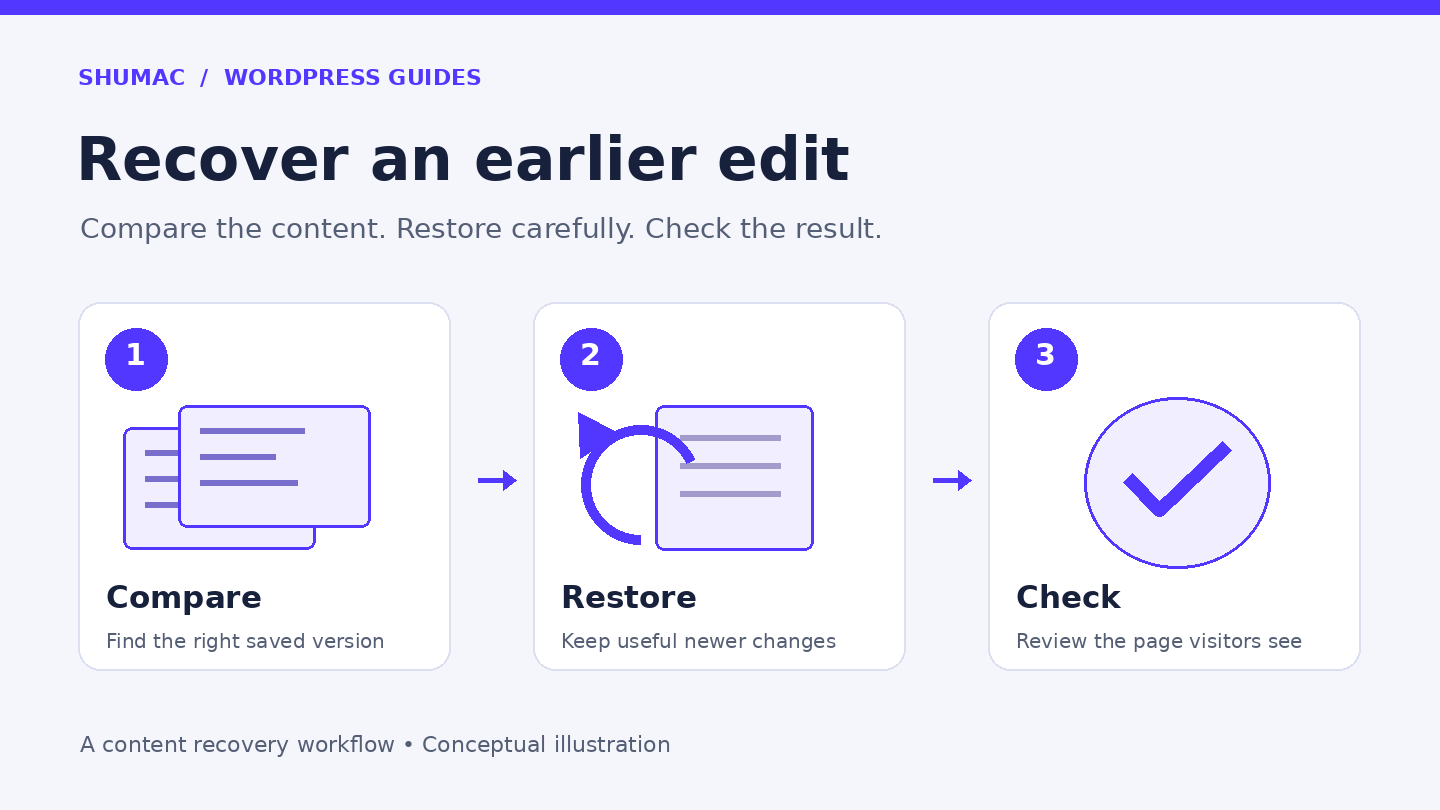
This guide covers posts and pages in the WordPress block editor. If the page was built with Elementor, use the Elementor note below before changing its content.
1. Preserve the useful parts of your current version
Before restoring anything, copy any recent text you want to keep into a separate document. Note the post title and the mistake you are trying to fix. If someone else is editing the same page, agree who will make the recovery.
For a change you just made in the current editing session, try the editor’s Undo button first. The official block editor guide explains Undo, Redo, and the editor toolbar.
Example: imagine that you corrected your opening hours this morning, then accidentally deleted an explanation of your services. Restoring yesterday’s content could also bring back yesterday’s incorrect hours. Keep today’s correction so you can reapply it.
2. Find and compare saved revisions
- Open Posts → All Posts or Pages → All Pages, then edit the affected item.
- Open the Settings sidebar and select the Post or Page tab.
- Select the number beside Revisions.
- Choose a saved version from the revision list or move the timeline slider. Read the changed content before deciding which version to use.
WordPress 7.0 and later have a newer revisions screen. Older installations use a classic side-by-side HTML comparison; that screen includes Compare any two revisions. The WordPress revisions documentation covers both interfaces.
Check more than the missing sentence. Review headings, links, contact information, dates, and any newer corrections. Choose the version whose content you need, rather than assuming the oldest or newest entry is best.
3. Restore deliberately
Select the desired version and use Restore or Restore This Revision, depending on the interface. Follow any confirmation or save prompts shown by your editor.
Important: treat restoration as a real content change. In the classic revisions screen, restoring a published post updates its saved content directly, so visitors may see the older version immediately. Do not click Restore just to inspect a version.
The WordPress restore function reference shows that restoration updates the existing post. Plan the recovery before using the button on an important live page.
If you only need one short passage, consider copying that wording from the comparison and inserting it into your current version instead of rolling back the whole post. Copy readable text carefully; do not paste unfamiliar HTML or block markup into a paragraph.
4. Check the page visitors will see
Reapply any useful newer changes you preserved, then save using the control your editor provides. Open the actual post or page on the website and check:
- The missing content is back and the newer corrections are still accurate.
- Headings, lists, images, and captions appear in the right order.
- Links lead to the intended pages and important buttons still make sense.
- The content is readable on a phone as well as a larger screen.
If a restored section contains jump links, verify the links and their matching heading anchors together. Shumac’s guide to adding jump links explains that pairing.
What if the version is missing?
Revisions only help when the needed version was retained. A site’s configuration can limit or disable them. Ask your site administrator or host about retention before changing settings yourself.
An autosave may help after an interrupted editing session. It is separate from the published content, and newer autosaves replace older ones. Inspect any available recovery notice or Autosave entry; do not assume it contains every lost edit.
If nothing suitable remains, ask whether an older site backup can be inspected safely on a separate test site. Avoid restoring an entire live database just to recover a paragraph: newer orders or other activity may be overwritten. See our WordPress backup guide for recovery precautions.
A note for Elementor pages
Open the page in Elementor and use its History panel. The Actions tab covers changes in the current editing session; Revisions lists saved versions. Follow Elementor’s official history instructions for your editor. Do not convert a builder page to another editor just to recover its wording.
A useful habit: before a substantial rewrite, keep a separate copy of the approved text. Revisions are helpful for content recovery, and regular site backups remain important for wider problems.