How to Add a Collapsible FAQ in WordPress
A page with several frequently asked questions can become difficult to scan. A collapsible FAQ keeps each question visible and lets readers open the answer they need. WordPress has a native Details block for this, so you do not need to install an accordion plugin for a simple question-and-answer section.
This guide uses the WordPress block editor, also called Gutenberg. If your page was built with Elementor, keep using that editor rather than switching its existing content to blocks. Practise in a draft first.
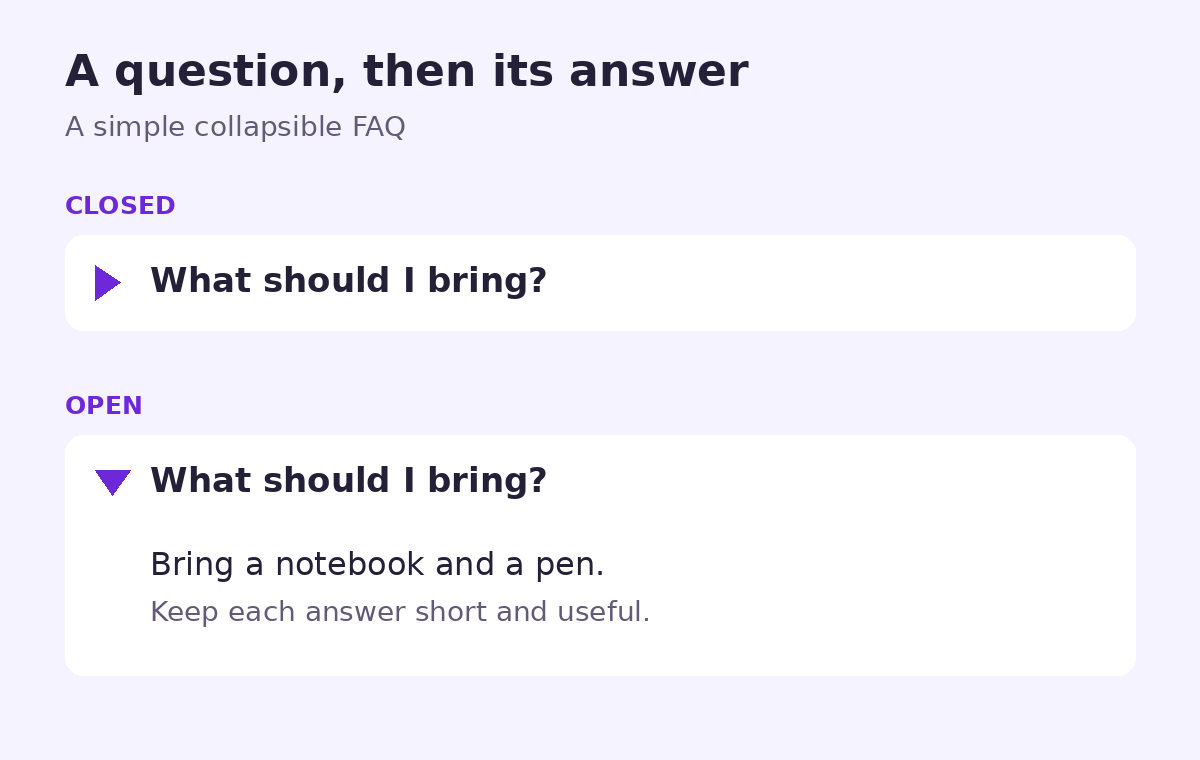
Decide what should stay visible
Use collapsible answers for supporting information, such as what to bring to a class or where to find preparation materials. Keep information people must notice—such as the price, eligibility rules and the main contact method—visible in the page itself.
A closed answer is not private or protected. Do not put passwords, private customer information or internal notes inside it. Treat it as public page content.
Add your first question and answer
- Open a draft post or page. Place the cursor where your FAQ section should begin.
- Use the plus-sign block inserter, search for Details and select it. You can also type /details in an empty paragraph and press Enter.
- Replace the summary placeholder with one clear question, such as “What should I bring?”
- Write the answer in the content area inside the Details block. Start with a short Paragraph block.
- Add another separate Details block below it for the next question. Check that you have not placed the new question inside the previous answer.
- Select the Details block and open its Block settings. Leave Open by default off for an initially closed answer, or turn it on when you want that answer visible on arrival.
- Save the draft and preview it.
The WordPress Details block documentation explains these controls. Labels and settings may look slightly different in your version.
Write answers that solve a real question
Imagine a fictional beginner drawing workshop. These two question-and-answer pairs would be useful:
- What should I bring? Bring a notebook and a pen. Drawing materials will be provided.
- Do I need previous drawing experience? No. The session starts with basic exercises for beginners.
These are examples, not facts about a Shumac event. Replace them with accurate details for your own page. Avoid vague labels such as “More” or “Information”: a reader should know what an answer covers before opening it.
If the FAQ needs an introduction, add a Heading block above the questions. Our guide to using H2 and H3 headings in WordPress explains how to choose its level.
Check the preview, not only the editor
- Open and close each answer. Click the question, then click it again. Check that the correct answer appears beneath it.
- Try the keyboard. Use Tab to reach a question and press Space to toggle it. Make sure you can see which question has focus. The MDN details element reference describes this native disclosure behaviour.
- Check a narrow screen. Long questions should wrap without clipping. Open every answer and check any images or links inside it.
- Read for completeness. Remove repeated questions and make sure each answer actually answers its label. If an answer needs several long sections, consider leaving it visible as ordinary page content instead.
If something looks wrong
If an answer appears outside the collapsible area, review the block structure: its Paragraph block should be inside the relevant Details block. If you cannot find Details in the inserter, check that you are in the block editor and ask your site administrator whether block availability is restricted. Do not install a plugin or change the site’s editor just to work around an unexplained missing block.
Before publishing, confirm the questions are relevant, the answers are accurate and essential information remains easy to find. A shorter FAQ with useful answers is better than a long list added only to fill space.