How to Use Headings in WordPress (H2 and H3)
Good headings help readers find the part of a page they need. If you have been making a line bold or choosing H3 because it looks smaller, this guide will help you separate the structure of your article from its appearance.
These steps use the native WordPress block editor, also called Gutenberg. No extra plugin is needed. If your page was built in Elementor, use that editor instead of switching its content to blocks.
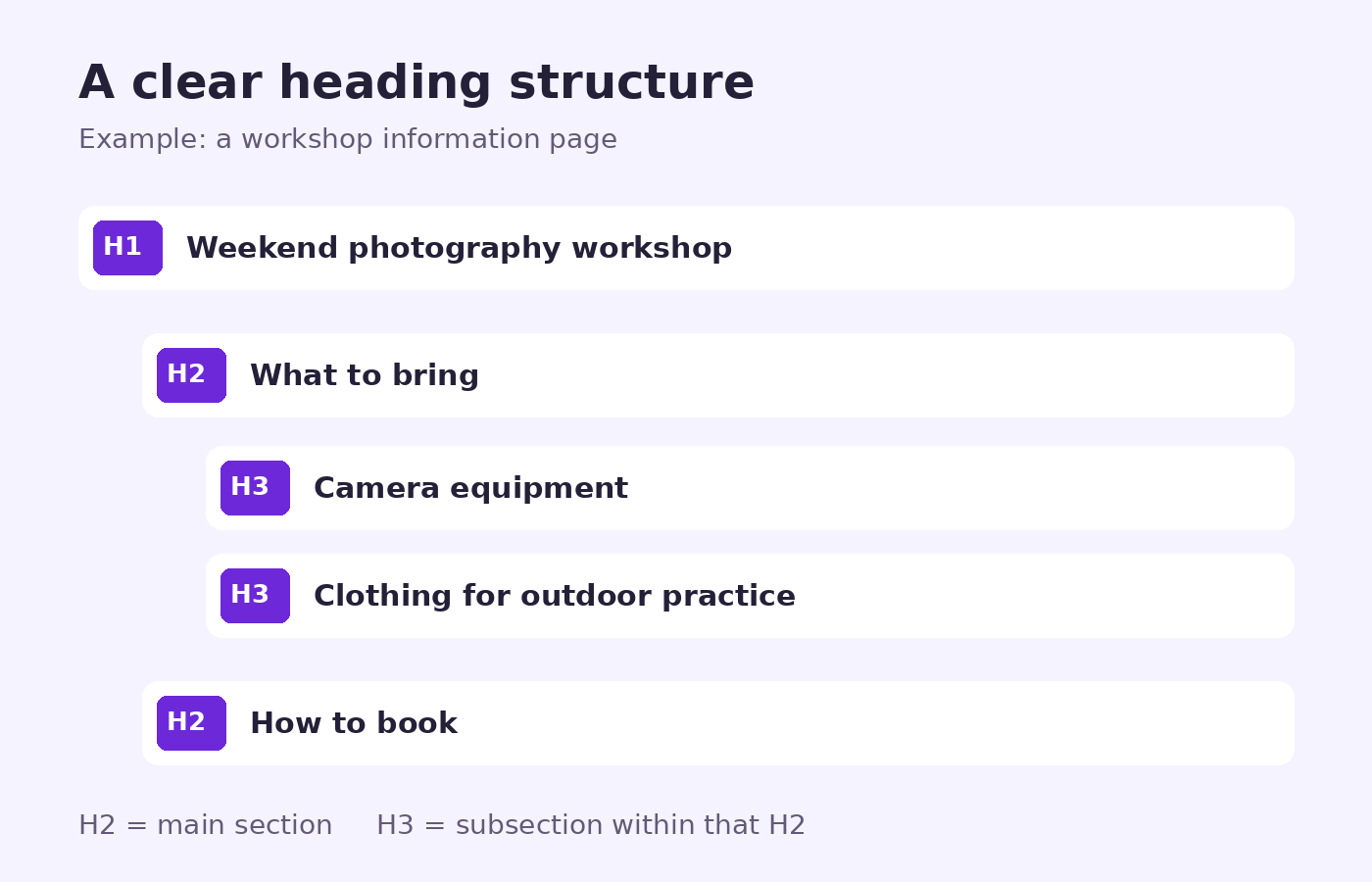
The workshop outline above is an example, not a template you must copy. Choose sections that answer your own readers’ questions.
Choose the level before the font size
Think of headings as an outline. H1 identifies the page topic; H2 introduces a main section; H3 introduces a subsection inside that H2. Most themes use the post title as H1, but templates can differ. Check your page rather than adding another H1 automatically.
Avoid jumping from H2 to H4 just to get smaller text. Returning from H3 to H2 is normal when you start the next main section. The W3C headings tutorial explains how nesting helps communicate the organisation of a page, including to people navigating with assistive technology.
Try this workshop example
Imagine a page titled “Weekend photography workshop.” A useful outline would be:
- H1: Weekend photography workshop
- H2: What to bring
- H3: Camera equipment
- H3: Clothing for outdoor practice
- H2: How to book
Both equipment and clothing belong under “What to bring.” Booking is a separate question, so it returns to H2. A short page may only need H2 sections; you do not need to use every level.
Add or change a Heading block
- Open your post or page in the block editor. Place the cursor where the new section should begin.
- Use the plus-sign block inserter and search for Heading, or type
/headingin an empty paragraph and press Enter. - Write a specific heading, such as “What to bring,” rather than “More information.”
- Select the heading and choose its level using the block toolbar or the heading-level controls in the Block settings sidebar. Choose H2 for a main section or H3 for its subsection.
- Continue with a paragraph beneath it. Save your draft.
To change an existing heading, select it and adjust the level in the same controls. The current WordPress Heading block documentation shows the toolbar and sidebar options. Their appearance can vary with your WordPress version.
Check the outline and the page
Open Document Overview in the editor and select its Outline tab. Read only the headings. Can you understand what the article covers without reading every paragraph? Look for a subsection that has accidentally become a main section, or a jump from H2 to H4.
Then preview the page at a wide and a narrow width. A correctly structured heading can still be difficult to read if its text is clipped, too large for a phone or too close to the paragraph above. Shorten an unnecessarily long heading before changing site-wide styles.
Fix common mistakes without changing the meaning
- A heading looks too large: keep its logical level and review the available Typography settings. Do not choose a lower level solely for its size. Avoid changing the whole theme for one post.
- A bold sentence is acting as a heading: use a real Heading block for the section label. Bold styling alone does not give a paragraph heading structure.
- Every sentence is a heading: keep explanations in Paragraph blocks. Headings should introduce useful sections, not replace the article.
- The outline seems right but the page title is missing: inspect the preview and the chosen template. Do not add a duplicate title until you understand what the template already outputs.
Before you publish
Check the title, section order and phone layout, then read each heading beside the text it introduces. If a heading promises booking instructions, the section should actually explain how to book.
For a longer guide, you can also add jump links to useful sections. For an action at the end, our guide to adding a button and checking its link covers the next step. Clear headings help people find information; they are not a promise of search rankings or a substitute for useful content.