How to Embed a YouTube Video in WordPress
A video link sends readers away. An embedded player lets them watch beside your instructions, product explanation or lesson summary. In the WordPress block editor, you can usually add a YouTube player without installing a plugin or uploading the video file.
This guide covers the standard block editor, not Elementor. Button labels and available alignment options can vary with your WordPress version and theme.
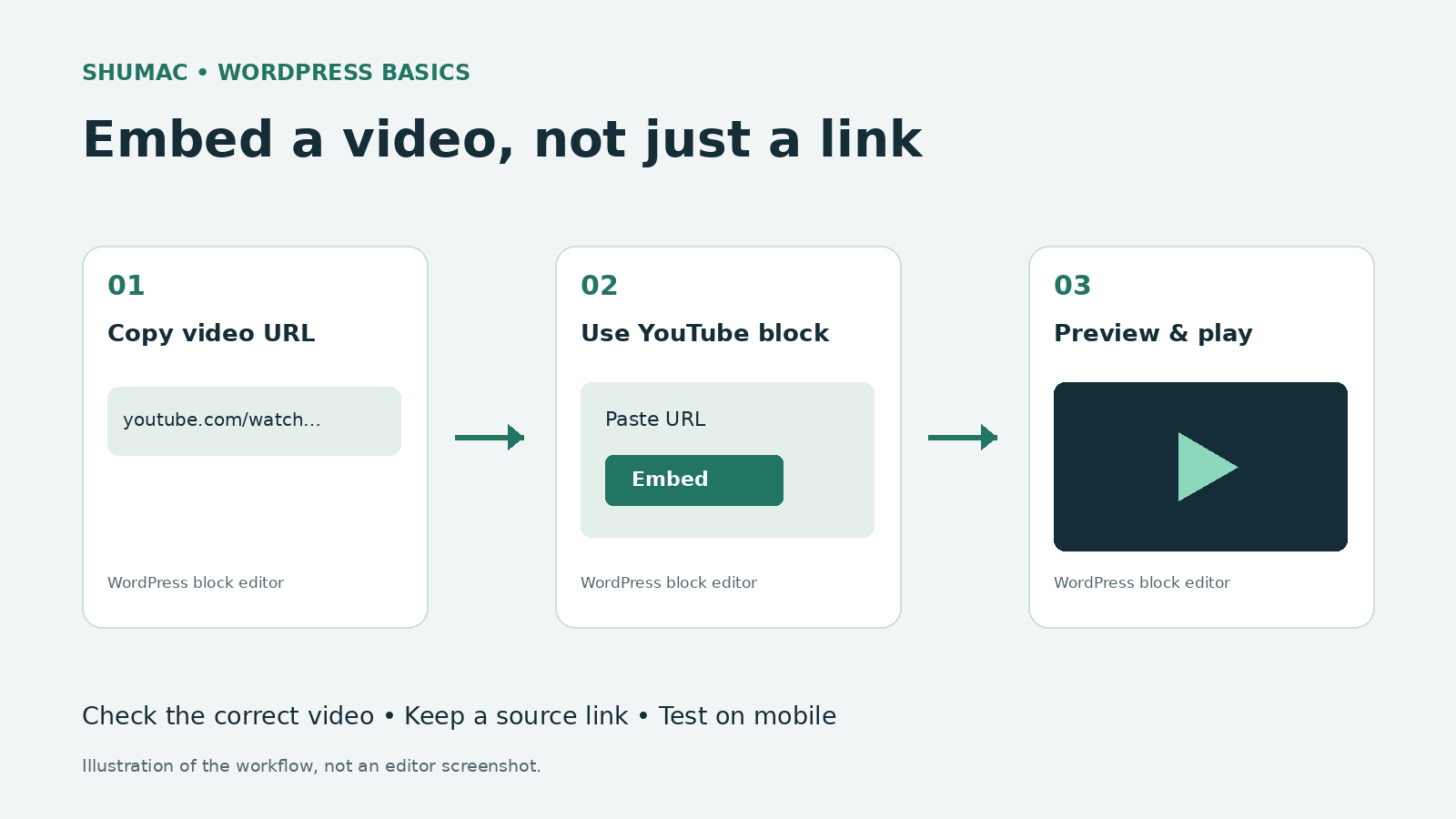
1. Choose the right video
Open the video on YouTube and confirm its title and content before copying its address. Use a video you own or are entitled to share through the provider’s embedding feature. For a workshop page, for example, choose the actual workshop introduction rather than a similarly named clip.
WordPress embeds load content from the original service. They do not copy the video into your Media Library. Public and unlisted YouTube videos can be embedded, but private videos cannot. The owner must also permit embedding. See the WordPress embeds documentation.
2. Insert the YouTube block
- Edit the post or page where the video belongs.
- Use the block inserter (+), search for YouTube and select the block.
- Paste the video’s URL into its field, then select Embed.
- Check that the preview shows the correct video. Add a short introduction above it and a useful caption below it.
Keep the block’s Resize for smaller devices option enabled when available. It helps preserve the player’s proportions on narrower screens. Wide and full-width alignment depend on theme support. These controls are explained in the official YouTube block guide.
3. Give readers a useful fallback
Put a descriptive text link below the player, such as “Watch the workshop introduction on YouTube.” Link that text to the same video. This gives readers another route if their browser blocks the player or the provider cannot play it on your site.
Include a short written summary of the important points. A resource page should still help someone who cannot hear the audio or cannot load the video. If you control the video, review its captions rather than assuming automatic captions are accurate. For related page structure, see Shumac’s guide to H2 and H3 headings.
4. Preview before publishing
- Preview the page on desktop and a phone-sized screen. Check that the player fits without pushing the page sideways.
- Press Play. A visible thumbnail alone does not prove playback works.
- Check the fallback link and any captions. Do not start audio automatically.
- After publishing, repeat the check while logged out, because visitors may see different consent or access prompts.
If the video does not play
First confirm that you copied a video URL rather than a channel or search-results address. Try the correct URL again in the block. If WordPress cannot embed it, keep a normal text link instead of pasting unfamiliar scripts from a troubleshooting website.
A working YouTube page does not guarantee playback inside another website. The owner may disable embedding, and age-restricted videos generally send viewers back to YouTube. Error 153 can indicate missing HTTP Referer information. Give the exact error to your site administrator rather than disabling security settings blindly. YouTube’s embedding help explains these restrictions and privacy-enhanced mode.
Keep the page focused
Start with one relevant video, a clear explanation and a working source link. Add more players only when each serves a distinct purpose. An embed also connects visitors with a third-party service, so account for that in your site’s privacy and consent approach; a standard embed is not a promise of zero tracking.
If the page also needs a worksheet, follow our downloadable PDF guide. Keep the video and download labels specific so readers know which resource to choose.